
Tech
GTD with Workflowy: The Complete Guide to Building a Trusted Productivity System

Published
3 months agoon

Table of Contents
ToggleModern life demands more than simply keeping a to-do list. Between work responsibilities, personal commitments, long-term goals, meetings, emails, and unexpected tasks, it is easy to feel overwhelmed by the sheer volume of information competing for your attention. Productivity is no longer about working harder; it is about creating a reliable system that allows you to focus on the right task at the right time without constantly worrying about what you might be forgetting. This is exactly why so many people turn to the Getting Things Done (GTD) methodology created by David Allen and pair it with Workflowy, one of the most flexible outlining applications available today.
GTD with Workflowy combines the structured principles of Getting Things Done with the simplicity and unlimited hierarchy of Workflowy. Instead of managing dozens of scattered notes, sticky notes, and incomplete task lists, you create a trusted system where every idea, project, and next action has a proper place. Workflowy’s clean interface allows you to organize tasks without unnecessary complexity, making it ideal for both beginners and experienced GTD practitioners. Whether you are managing personal goals, professional projects, or daily responsibilities, Workflowy offers the flexibility needed to implement GTD exactly the way you prefer.
In this comprehensive guide, you will learn everything about using GTD with Workflowy, including how to set up your productivity system, organize projects, process your inbox, perform weekly reviews, manage contexts, prioritize tasks, avoid common mistakes, and maintain long-term productivity. By the end of this article, you will have a complete understanding of how to build a powerful GTD workflow inside Workflowy that helps you stay organized, reduce stress, and accomplish more with confidence.
What Is GTD?
Getting Things Done (GTD) is a productivity methodology developed by David Allen. The core philosophy is simple yet powerful: your mind is designed for having ideas, not for storing them. Instead of trying to remember every responsibility, appointment, or project, GTD encourages you to capture everything into an external system. Once tasks are collected, they are clarified, organized, reviewed, and executed using a structured workflow.
The five fundamental steps of GTD include Capture, Clarify, Organize, Reflect, and Engage. Together, these stages create a trusted productivity system that reduces mental clutter while ensuring that every commitment is tracked appropriately. Rather than reacting to daily interruptions, GTD helps individuals make intentional decisions about what deserves attention.
Why Workflowy Is Perfect for GTD
Workflowy is uniquely suited for the GTD methodology because of its infinite nesting structure. Every bullet point can contain unlimited child items, allowing projects, subprojects, notes, references, and next actions to remain organized without becoming visually overwhelming. Unlike many task management applications that force users into rigid workflows, Workflowy gives complete freedom to design a productivity system that matches personal preferences.
Its search functionality makes locating information nearly instantaneous, while tags, mirrors, filters, and keyboard shortcuts significantly improve navigation. Users can collapse and expand sections whenever needed, enabling them to focus only on relevant information without unnecessary distractions. This minimalist design perfectly complements the GTD philosophy of maintaining clarity and reducing cognitive overload.
Setting Up GTD with Workflowy
The first step is creating a structured outline that mirrors the GTD workflow. Many users begin with top-level categories such as Inbox, Projects, Next Actions, Waiting For, Someday/Maybe, Calendar, Reference, and Completed Tasks. Each category serves a specific purpose within the GTD framework, ensuring that every item captured throughout the day eventually reaches its appropriate destination.
The Inbox acts as the collection point for every new idea, task, or responsibility. During processing sessions, each item is clarified and moved into Projects if it requires multiple steps, Next Actions if immediate work can begin, Waiting For if another person is responsible, or Someday/Maybe if the idea should be postponed for future consideration. Reference materials remain separate from actionable tasks, preventing unnecessary clutter during daily planning.
Capturing Everything
One of the biggest productivity mistakes people make is relying on memory. Every idea, commitment, phone call, meeting note, or random thought consumes mental energy until it is safely recorded somewhere reliable. Workflowy excels at rapid information capture because adding a new bullet takes only seconds.
Whenever something enters your mind, immediately place it into the Inbox. Avoid deciding where it belongs until your scheduled processing time. This habit keeps your attention focused while ensuring that nothing important disappears from memory.
Organizing Projects
Projects in GTD are outcomes requiring more than one action. Workflowy’s nested bullets make project planning exceptionally intuitive. A project can contain objectives, supporting notes, deadlines, brainstorming ideas, reference materials, and individual next actions, all organized beneath a single expandable heading.
Because every project remains collapsible, large amounts of information stay hidden until needed, reducing visual clutter while preserving complete project context.
Using Contexts
Traditional GTD organizes next actions by context, such as Computer, Phone, Office, Home, Errands, or Online. Workflowy makes context management easy through tags or dedicated sections. When sitting at your computer, you simply filter tasks assigned to that context instead of reviewing unrelated work.
Context-based organization improves decision-making because available tasks automatically match your current environment and available resources.
Weekly Reviews
The weekly review is the engine that keeps a GTD system functioning effectively. During this review, every project, waiting task, inbox item, and someday idea receives attention. Workflowy’s collapsible structure makes weekly reviews efficient because each project expands only when necessary.
Consistent weekly reviews prevent neglected projects, reduce stress, and ensure your productivity system remains trustworthy over time.
Best Practices
A successful GTD implementation inside Workflowy depends on consistent habits rather than complicated configurations. Capture everything immediately, process your inbox daily, define clear next actions, conduct weekly reviews, archive completed projects, and keep your outline clean. Avoid creating unnecessary organizational layers, as excessive complexity often reduces productivity instead of improving it.
Workflowy’s strength lies in its flexibility, so build a system that supports your work style rather than copying someone else’s setup exactly.
Common Mistakes
Many beginners confuse projects with tasks, resulting in vague action lists that are difficult to execute. Others skip weekly reviews, allowing their systems to become outdated and unreliable. Some users over-organize with excessive tags, folders, and nested structures, creating unnecessary friction whenever they need to add or locate information.
The most effective GTD systems remain simple, trusted, and regularly maintained.
Advanced Workflowy Tips
Experienced users often enhance Workflowy by incorporating saved searches, mirrored bullets, keyboard shortcuts, recurring review checklists, project templates, and personalized tagging systems. These advanced features make navigation faster while supporting larger personal and professional workflows.
Automation can also be integrated through external services if additional functionality is required, although Workflowy’s simplicity often proves sufficient for most users.
Conclusion
GTD with Workflowy offers one of the most effective combinations available for building a reliable personal productivity system. The structured methodology of Getting Things Done provides a proven framework for capturing, organizing, reviewing, and completing work, while Workflowy’s flexible outlining interface allows that framework to adapt naturally to individual preferences. Together, they create a trusted environment where ideas are never lost, projects remain organized, and daily priorities become clear.
The real strength of this combination is not found in sophisticated features but in consistent habits. By regularly capturing new information, processing your inbox, maintaining organized projects, reviewing your system each week, and focusing on clearly defined next actions, you can dramatically reduce stress while improving productivity. Whether you are managing a demanding career, academic responsibilities, personal goals, or multiple side projects, GTD with Workflowy provides a scalable system that grows alongside your needs. As you continue refining your workflow, you will spend less time worrying about what needs to be done and more time making meaningful progress toward your most important objectives.
Frequently Asked Questions (FAQ)
Is Workflowy good for GTD?
Yes. Workflowy’s unlimited bullet hierarchy, clean interface, search functionality, and flexible organization make it an excellent tool for implementing the GTD methodology.
Can beginners use GTD with Workflowy?
Absolutely. Beginners can start with simple sections like Inbox, Projects, Next Actions, Waiting For, and Someday/Maybe, then gradually expand their system as they become more comfortable.
Does Workflowy replace dedicated task management apps?
For many users, yes. Workflowy can effectively manage projects, tasks, notes, goals, and references in a single, streamlined workspace. However, users who need advanced collaboration or complex project scheduling may still prefer specialized project management software.
How often should I perform a weekly review?
The GTD methodology recommends conducting a complete review once every week. This practice keeps your system current, ensures that projects continue moving forward, and prevents important commitments from being overlooked.
What is the biggest advantage of using GTD with Workflowy?
The greatest advantage is the combination of a proven productivity framework with an extremely flexible organizational tool. This allows you to build a trusted system that captures every commitment, organizes work efficiently, and helps you focus on the next most important action without unnecessary complexity.
You may like
Tech
DX Flash: Complete Guide to Features, Uses, Installation, Benefits, and Troubleshooting
Published
3 months agoon
July 3, 2026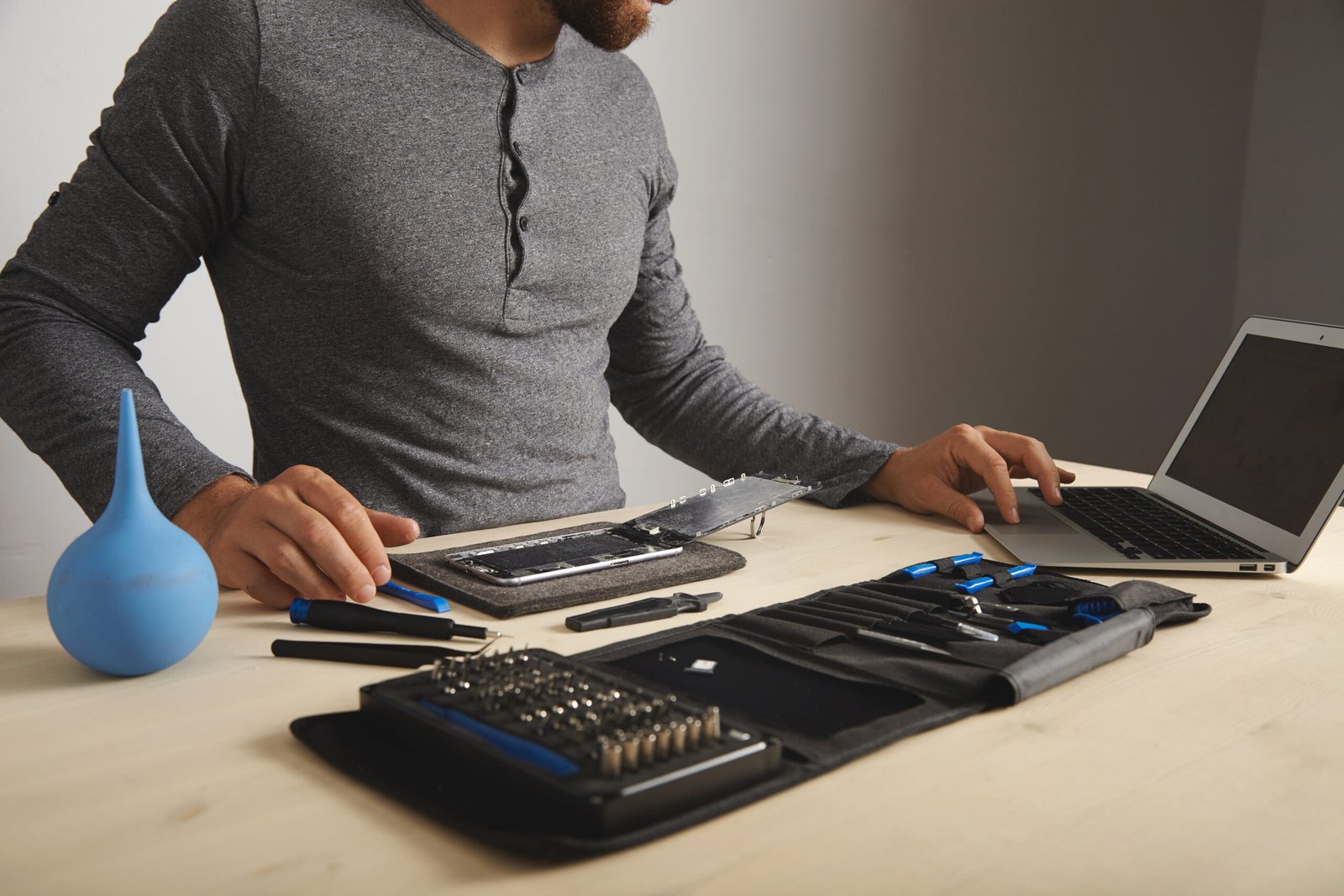
Table of Contents
ToggleDX Flash has become a widely discussed software solution among users who regularly work with mobile devices, firmware management, and system maintenance. Whether you are a beginner exploring flashing software for the first time or an experienced technician searching for a dependable solution, understanding how DX Flash works can help you perform device-related tasks more efficiently. Modern flashing tools are designed to simplify firmware installation, software updates, system recovery, and device maintenance, making them valuable resources for repair professionals and advanced users alike.
One of the reasons DX Flash continues to attract attention is its combination of usability, compatibility, and practical functionality. Instead of requiring complicated procedures, it aims to provide an organized workflow that helps users manage firmware-related operations with greater confidence. While every flashing process requires careful preparation to avoid errors, having a reliable tool significantly improves the overall experience. This comprehensive guide explains DX Flash, its primary features, installation process, benefits, common uses, troubleshooting tips, and best practices so readers can understand the software before using it.
What Is DX Flash?
DX Flash is a flashing and device management tool designed to assist users in installing firmware, updating software, recovering supported devices, and performing maintenance operations. Flashing software generally replaces or reinstalls the operating system or firmware on compatible hardware, helping resolve software-related issues that cannot be fixed through standard updates.
Many technicians rely on flashing tools because they provide solutions for devices experiencing boot loops, software corruption, failed updates, or performance issues. DX Flash is intended to simplify these procedures by offering an organized interface that guides users through various firmware management tasks. Depending on the supported devices and firmware packages, users may perform updates, restore original software, or recover systems that have become unstable.
Key Features of DX Flash
One of the strongest aspects of DX Flash is the variety of features it provides for users working with firmware and software management. Instead of limiting functionality to a single operation, the software is designed to support multiple maintenance tasks within one application.
The software typically provides firmware flashing capabilities that allow compatible firmware files to be installed on supported devices. It may also include automatic device detection, helping reduce setup time while minimizing connection errors. An intuitive interface makes navigation easier for beginners, while advanced configuration options offer additional flexibility for experienced users who require greater control over flashing procedures.
DX Flash is also appreciated for its stability during firmware installation. Many users prefer tools that provide progress indicators, detailed status messages, and clear error reporting because these features make troubleshooting much easier if problems occur during the flashing process.
Benefits of Using DX Flash
Using DX Flash offers several advantages for users involved in device maintenance and software recovery. One significant benefit is the ability to restore devices experiencing operating system problems without requiring complete hardware replacement. Software-related issues often appear more serious than they actually are, and reinstalling firmware can restore normal functionality.
Another important benefit is software updating. Installing the latest compatible firmware can improve performance, fix bugs, enhance security, and introduce new features provided by the device manufacturer. This helps extend the useful life of compatible devices while maintaining better stability.
DX Flash also supports maintenance workflows by reducing the complexity of firmware management. Instead of manually executing multiple technical commands, users can complete many operations through a graphical interface that streamlines the process and minimizes unnecessary steps.
How DX Flash Works
The flashing process generally begins with connecting a compatible device to a computer using a reliable USB connection. After the software recognizes the device, users select the appropriate firmware package that matches the hardware model and software version. The flashing tool then prepares the firmware files, verifies compatibility, and begins transferring system components to the device.
During installation, the existing firmware may be replaced or updated depending on the selected operation. It is important that users avoid disconnecting the device until the process finishes because interruption during flashing may cause software corruption or incomplete installation. Once the operation is completed successfully, the device usually restarts with the newly installed firmware.
Installing DX Flash
Before installing DX Flash, users should verify that their computer meets the software requirements. Downloading the application from a trusted source helps reduce security risks and ensures the software has not been modified.
After installation, appropriate USB drivers should be installed if required for supported devices. Drivers enable communication between the computer and connected hardware, allowing DX Flash to detect compatible devices correctly. Once installation is complete, users can launch the software and begin configuring firmware operations according to the device requirements.
Common Uses of DX Flash
DX Flash serves a variety of practical purposes depending on the user’s needs. Repair technicians frequently use flashing software to recover devices that fail to boot after software corruption. Firmware updates are another common use because they help install newer system versions that improve stability and security.
Advanced users sometimes use flashing tools to reinstall factory firmware before selling a device or to restore original software after testing development versions. Businesses that maintain large numbers of supported devices may also use flashing software during maintenance and deployment procedures.
Troubleshooting Common DX Flash Problems
Even reliable flashing software may occasionally encounter errors. Connection problems often result from incompatible USB drivers, damaged cables, unstable USB ports, or unsupported devices. Verifying drivers and using high-quality USB connections frequently resolves detection issues.
Firmware compatibility errors can occur when users attempt to install software designed for a different device model. Selecting firmware that exactly matches the hardware specifications helps prevent installation failures.
If flashing stops unexpectedly, restarting both the computer and the device before repeating the procedure may resolve temporary communication problems. Keeping sufficient battery power and avoiding cable disconnection during flashing also reduces the likelihood of interruptions.
Best Practices for Using DX Flash
Successful flashing depends on careful preparation rather than rushing through the process. Always create backups of important data before modifying firmware because flashing may erase user information depending on the selected operation. Reading device documentation and confirming firmware compatibility helps prevent avoidable errors.
Users should also maintain stable computer power, avoid interrupting flashing sessions, and keep both the software and required drivers updated whenever newer versions become available. These practices contribute to safer firmware management and reduce unnecessary risks.
Final Thoughts
DX Flash is a useful firmware management solution for users who need to install, update, recover, or maintain compatible devices. Its organized interface, practical feature set, and support for firmware operations make it valuable for beginners and experienced technicians alike. Although flashing software always requires caution, following recommended procedures, verifying compatibility, and maintaining reliable backups significantly improves the chances of successful device recovery and software installation. Understanding how DX Flash works allows users to approach firmware management with greater confidence while minimizing common problems associated with flashing operations.
Conclusion
DX Flash provides an effective approach to firmware installation, software recovery, and device maintenance for compatible hardware. By combining an accessible interface with practical flashing capabilities, it helps simplify processes that might otherwise require advanced technical knowledge. Users who follow proper preparation steps, use compatible firmware, and observe recommended safety practices can benefit from a smoother and more reliable flashing experience. Whether your goal is restoring a malfunctioning device, updating firmware, or performing routine maintenance, learning how to use DX Flash correctly is an important step toward successful device management.
Frequently Asked Questions (FAQ)
What is DX Flash used for?
DX Flash is primarily used for firmware installation, software recovery, device maintenance, and system updates on supported devices.
Is DX Flash suitable for beginners?
Yes. Many users find its interface relatively easy to understand, although beginners should carefully follow official instructions and verify firmware compatibility before flashing.
Can DX Flash fix boot loop issues?
If a boot loop is caused by software corruption and the device is supported, reinstalling the correct firmware with DX Flash may resolve the issue.
Does flashing erase data?
In many cases, flashing can erase user data depending on the selected operation and firmware package. Creating a complete backup before starting is strongly recommended.
Why is my device not detected?
Common reasons include missing USB drivers, incompatible hardware, faulty USB cables, unsupported devices, or incorrect connection modes.
Is DX Flash safe to use?
When used with compatible devices, correct firmware files, and proper procedures, DX Flash can be used safely. However, flashing always carries some risk, so following official guidance and backing up important data is essential.
How can I reduce flashing errors?
You can reduce errors by using compatible firmware, installing the correct USB drivers, maintaining a stable USB connection, ensuring sufficient battery power, and avoiding interruptions during the flashing process.

Dan Cogdell: Career, Background, Legal Work, and What to Know

2025 BMW 3 Series: Complete Guide to Price, Specs, Features, and Performance

Karrueche Tran Naked Search: Understanding Online Privacy and Celebrity Rumors

The Complete Guide to Features, Benefits, Trading Tools, and Market Analysis

CDiPhone: Complete Guide, Features, Benefits, Review & Buying Tips (2026)

The Complete Guide to Understanding, Using, and Optimizing Tags for Better Organization and SEO
Trending
 Technology3 months ago
The Complete Guide to Features, Benefits, Trading Tools, and Market Analysis
- Technology3 months ago
CDiPhone: Complete Guide, Features, Benefits, Review & Buying Tips (2026)
- Digital3 months ago
The Complete Guide to Understanding, Using, and Optimizing Tags for Better Organization and SEO
- Entertainment3 months ago
What Is Satta Marking? Complete Guide for Beginners
- Tech3 months ago
DX Flash: Complete Guide to Features, Uses, Installation, Benefits, and Troubleshooting
- Celebrity3 months ago
Trump Tees It Up With Hall of Fame: Complete Story, Event Highlights, and Why It Matters
- Entertainment3 months ago
MMA Stream Reddit: 9 Powerful Legal Ways to Watch Fights Online
- Lifestyle3 months ago
B&Q Altrincham: Complete Store Guide, Products, Services, Opening Hours & Shopping Tips